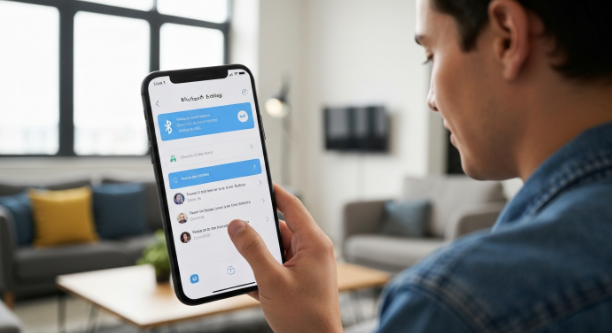
Learning how to connect AirPods to Android helps you enjoy high-quality wireless audio, even without an Apple device. AirPods work like standard Bluetooth earbuds, so pairing them with Samsung, Xiaomi, Google Pixel, Realme, Oppo, Vivo, or any Android phone becomes simple. This guide explains every step, including pairing, troubleshooting, and connection tips to improve audio performance.
What Are AirPods and Why Use Them with Android
AirPods offer seamless wireless connectivity, superior sound, and reliable touch controls. Many Android users prefer them for music, calls, workouts, or entertainment. Despite being designed for iOS, AirPods still pair smoothly with any Bluetooth-enabled Android device. You get stable audio, auto reconnection, and good battery efficiency with proper setup.
How to Connect AirPods to Android – Step-by-Step Setup
To connect AirPods to an Android phone, you only need Bluetooth. Follow the steps carefully and ensure both devices are charged. After initial pairing, AirPods reconnect automatically when taken out of the case, making future use effortless.
Step 1: Turn On Bluetooth on Android
Open your phone settings and enable Bluetooth. Quick settings let you toggle it with one tap. Keeping Bluetooth active allows your phone to search for nearby devices. Smooth pairing depends on stable Bluetooth connectivity with adequate range and no interference.
Step 2: Put AirPods in Pairing Mode
Place AirPods inside the charging case. Close the lid, wait a moment, then open it. Hold the setup button located on the case until the LED indicator flashes white. This light means pairing mode is active and ready for Android device detection.
Step 3: Pair AirPods from Bluetooth Menu
Scan for devices on your phone. Select AirPods when they appear in the list. A confirmation message usually follows instantly. Once paired, audio automatically plays through AirPods. Voice calls, media, games, and streaming respond without extra setup.
Step 4: Test the Connection
Play a song or video to verify sound output. Adjust volume and check microphone clarity with a voice note. Smooth playback confirms successful pairing. If audio lags or drops, try reducing the distance between phone and AirPods.
How to Reconnect AirPods to Android Automatically
When pairing happens once, reconnection becomes automatic. Open the case and take out the AirPods. Your phone instantly detects them. Faster connection improves daily usability for calls or music on the go. If auto-connect does not work, toggle Bluetooth off and on to refresh signals.
How to Use AirPods Features on Android
Even with Android, you still enjoy several features. Touch controls work well in most apps. Basic gestures manage songs, calls, and voice commands. Volume balance remains stable with proper Bluetooth configuration.
Touch and Gesture Controls
- One tap plays or pauses music
- Double tap skips to the next track
- Long press can activate noise mode (AirPods Pro only)
Smooth responsiveness depends on clean sensors and proper device connectivity.
Noise Cancellation and Transparency
AirPods Pro users experience ANC and transparency mode. These features reduce background noise or amplify surroundings for awareness. Settings adjust control sensitivity when using supported apps.
Battery Monitoring Options
Android lacks native AirPods battery display, although third-party apps solve this easily. Clear indicators help track usage during long listening sessions.
Troubleshooting – When Your AirPods Won’t Connect
Sometimes pairing fails due to minor Bluetooth issues. These solutions fix most problems quickly.
Reset Connection
Forget AirPods from Bluetooth settings. Hold case button for 15 seconds to reset. Pair again from start. This process clears conflicts and restores smooth pairing.
Clean Speakers and Case
Dust affects audio quality and connection pins inside the charging case. Clean gently using a dry microfiber cloth for better charging response.
Update Android Software
New OS updates optimize Bluetooth drivers. Updated firmware improves stability. A simple update often delivers faster performance and stronger connectivity.
Keep Devices Charged
Low battery interrupts wireless audio streaming. Maintain enough charge for uninterrupted playback.
Advanced Tips for Better AirPods Performance on Android
Improving sound quality becomes easier with minor adjustments. Bluetooth codecs and settings impact output stability. Small changes elevate the audio experience noticeably.
Enable High-Quality Audio Output
Many Android phones allow AAC codec, providing richer sound. Enable it in Bluetooth audio settings for sharper clarity and lower latency.
Use Equalizer Settings
Adjust bass, mid, and treble levels based on preference. Balanced EQ tunes music performance more accurately.
Reduce Wireless Interference
Crowded Wi-Fi frequencies disrupt Bluetooth channels. Keep devices closer and reduce obstructions for smooth sound delivery.
Keep Firmware Updated
Regular firmware updates enhance noise control, connectivity, and battery optimization.
Conclusion
Now you understand how to connect AirPods to Android quickly and effectively. Simple steps help pair both devices, while performance settings boost sound quality. Try these methods and enjoy wireless convenience, seamless music control, and long listening comfort. Pair your AirPods today and experience effortless audio freedom.
FAQs
1. Can AirPods work fully on Android?
Yes, AirPods work well on Android with Bluetooth pairing. Some advanced Apple-exclusive features may not appear.
2. Why won’t my AirPods connect?
Restart Bluetooth, reset AirPods, or update your device to resolve pairing issues.
3. Can I check AirPods battery on Android?
Yes, battery status displays through Bluetooth settings or third-party apps.
4. Do AirPods Pro noise cancellation features work?
Yes, ANC and transparency mode function normally when paired correctly.
5. Why is sound lagging in games?
Enable AAC codec or reduce interference. Keeping devices closer reduces latency.